
PETS Pony Land Controls, Emotes, and Motion
PC and mobile tips, emotes, and animation styles that sell your pony.
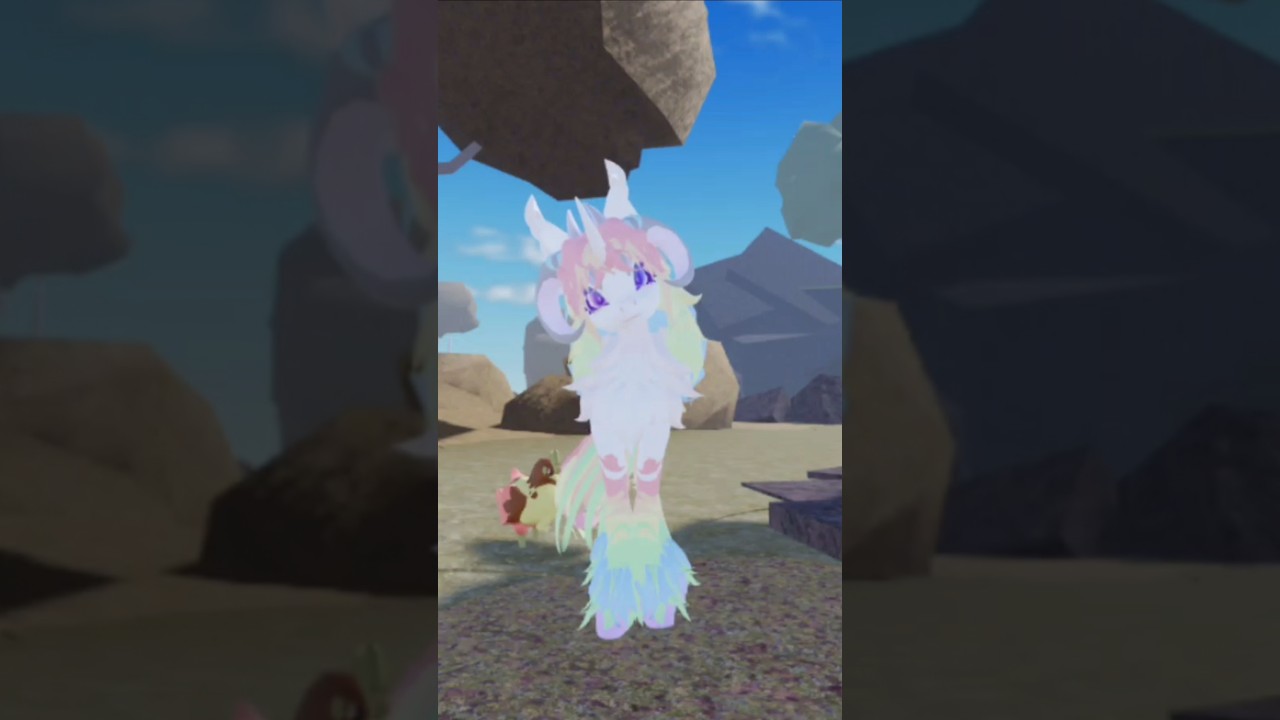
A gorgeous coat only works if you can move, camera-frame, and express yourself. PETS! Pony Land combines Roblox movement with pony-specific flair: dynamic idle, wing, and tail animations plus emotes that make social servers feel alive. This guide covers practical PC and mobile control habits, how to use emotes without spamming, and how animation styles complete the fantasy you built in the customization menus.
Onboard with Getting Started, pick a type via Species, finish looks in Customization, and earn wearable flair through Accessories and Crafting. Return to the Guides Hub for the full list.
Core movement mindset
Pony Land is a social exploration space more than a precision platformer. Your goals are smooth camera work, reliable sprint-walk control, and the ability to stop cleanly for screenshots or emotes. Practice a short obstacle loop near spawn: walk, stop, orbit camera, emote, resume. That five-minute drill prevents awkward spins later when you are wearing a new hat.
Because servers hold groups up to about twenty players, predictable movement is polite. Avoid zig-zagging through crowded flower patches where others are gathering. If you need to AFK, step aside so interact points stay clear.
PC tips
- Use keyboard movement with mouse look; keep sensitivity high enough to check wings and horns quickly after equipping accessories.
- Strafe while orbiting your pony in a quiet area to inspect clipping—same habit recommended after crafts in Accessories and Crafting.
- Bind your attention to inventory open/close comfort. Customization and emote panels are useless if you fumble menus every time.
- When framing screenshots, nudge the camera slightly above eye level for manes, or lower for hoof and pattern detail.
- If FPS dips in busy servers, lower graphics temporarily while adjusting tiny accessory placements; then raise quality for the final screenshot.
PC players often multitask chat and movement. Finish emotes before typing long messages so your pony does not walk face-first into a wall mid-pose.
Mobile tips
- Recalibrate thumb camera control before entering dense decor. Accidental flings make hat fitting miserable.
- Use shorter movement bursts. Stop fully before opening inventory so UI taps register on the menu, not the world.
- Pinch/adjust camera distance after switching idle or wing styles; mobile FOV makes large manes look heavier than on PC.
- Emote buttons deserve two-handed stability—park in a clear plaza, not on a narrow ledge.
- If UI scale feels tight, landscape orientation usually helps when comparing save slots.
Mobile players benefit from simpler daily outfits on slot 1. Fewer overlapping accessories means fewer precision taps when something looks wrong. Save ornate experiments for a moment when you can sit still, as described in Customization.
Emotes: timing and etiquette
Emotes are social punctuation. Use them to greet, celebrate a craft, or show a new species silhouette—not to flood every second of a gather route.
Strong emote habits
- Stop moving before you trigger the emote so the animation reads.
- Face your audience; ponies looking at scenery while emoting feel disconnected.
- Pair emotes with the right idle style. A calm idle plus a soft emote matches pastel Unicorns; brighter loops match graphic Pegasus wings.
- Give other players space to reply with their own emote instead of chaining five instantly.
- After a successful craft or flower discovery, one celebration emote is enough—then share useful info in chat if you want.
If an emote clips through a fresh hat, unequip or adjust the accessory before recording video. The fit checklist on the crafting guide still applies when motion is involved.
Idle, wing, and tail animation styles
Dynamic animation styles are first-class customization. They change how heavy, elegant, playful, or majestic your pony feels even when you stand still.
Idle styles
Idle loops are your AFK personality. Test them after major mane changes. A dramatic idle that flips hair through a Unicorn horn may force a tighter mane or a different loop. Earth ponies rely on idle and tail more than wing spectacle, so spending time here pays off.
Wing styles (especially Pegasus)
Wing styles should be auditioned with your camera at a three-quarter angle. Look for clipping against hats, backs, and fluffy manes. If you main Pegasus, keep one “low drama” wing style on slot 1 for crowded explore sessions and a showy style on slot 2 for hangouts. Species tradeoffs are covered in Species.
Tail styles
Tails sell motion during turns and emotes. Match tail energy to mane energy. A stiff formal mane with a wildly physics-heavy tail can look accidental unless that contrast is intentional. Walk a short S-curve path after each tail swap.
Animation + accessory workflow
- Equip the accessory or hat.
- Set candidate idle/wing/tail styles.
- Walk, turn, and emote once each.
- Adjust placement or simplify the outfit if clips persist.
- Save the slot only after the motion pass.
Skipping the motion pass is how perfect menu previews become awkward in-world ponies.
Troubleshooting common control frustrations
- Camera stuck on decoration: walk backward, reset character if needed, then re-open inventory away from the prop.
- Emote will not play: ensure you are not mid-sprint or inside a blocking UI; stop first.
- Wing style seems missing: confirm you are on Pegasus and on the intended save slot.
- Mobile taps open the wrong panel: release movement sticks completely before tapping.
- Looks different after a patch: check Updates, then re-test animations on each filled slot.
Session plan that combines controls and content
- Warm up movement and camera for two minutes.
- Load slot 1; gather a short resource loop (Accessories and Crafting).
- Craft or equip one item; run the animation fit checklist.
- Meet players, exchange a couple of emotes, screenshot.
- Optional: swap to slot 2 for a formal look and a calmer idle.
This plan keeps controls practice attached to real progression instead of treating emotes as a disconnected toy menu.
Cross-links
- First-hour basics: Getting Started
- Silhouette choice: Species
- Parts, patterns, slots: Customization
- Flowers, mats, hats: Accessories and Crafting
- Index: Guides Hub
Mastering controls and emotes is how your pony stops being a static mannequin and starts feeling like a character on a live Roblox server. Move cleanly, emote with intention, and let idle, wing, and tail styles finish the story your colors started.
Frequently Asked Questions
Quick answers to the most common questions.
What should I practice first on PC or mobile?
Practice walk, full stop, camera orbit, one emote, then resume. That short loop covers most social and screenshot needs in Pony Land.
When should I change idle, wing, or tail styles?
Change them whenever you alter mane volume, hats, or species-defining traits, then walk-test and emote before saving the slot.
Any emote etiquette tips?
Stop moving, face your audience, play one clear emote, and give others time to respond. Avoid spamming during crowded gather moments.
Why does my hat look fine until I emote?
Emotes and animation styles reveal clipping that static previews hide. Adjust fit or simplify accessories, then save again.
Where do controls fit with other guides?
Use this page alongside Customization and Accessories and Crafting. Species explains wing versus horn concerns that affect animation checks.